How to Add Multi-Line Quotes in Gmail
Earlier this week, I was drafting an email in Gmail and needed to include a multi-line quote. Which seems like an easy enough thing to do. You simply select the quote’s lines, click the “Quote” button in the formatting bar, and you’re done, right? Wrong.
When you click the “Quote” button, Gmail does, indeed, style the text as a quote. Unfortunately, it also removes all of the quote’s line breaks, as seen in the following screenshots.


The quote’s lines are now smushed together. You can try to manually re-insert the line breaks, but then each line appears as a separate quote:

This is not the expected behavior. For what it’s worth, other webmail services like Proton Mail behave as expected; line breaks are preserved when you turn multiple lines into a quote. Fortunately, there’s a relatively easy workaround for Gmail.
First, place your cursor where the quoted text will appear in your email.
Second, without typing or highlighting any text, click the “Quote” button in the formatting bar to insert a quote indicator:
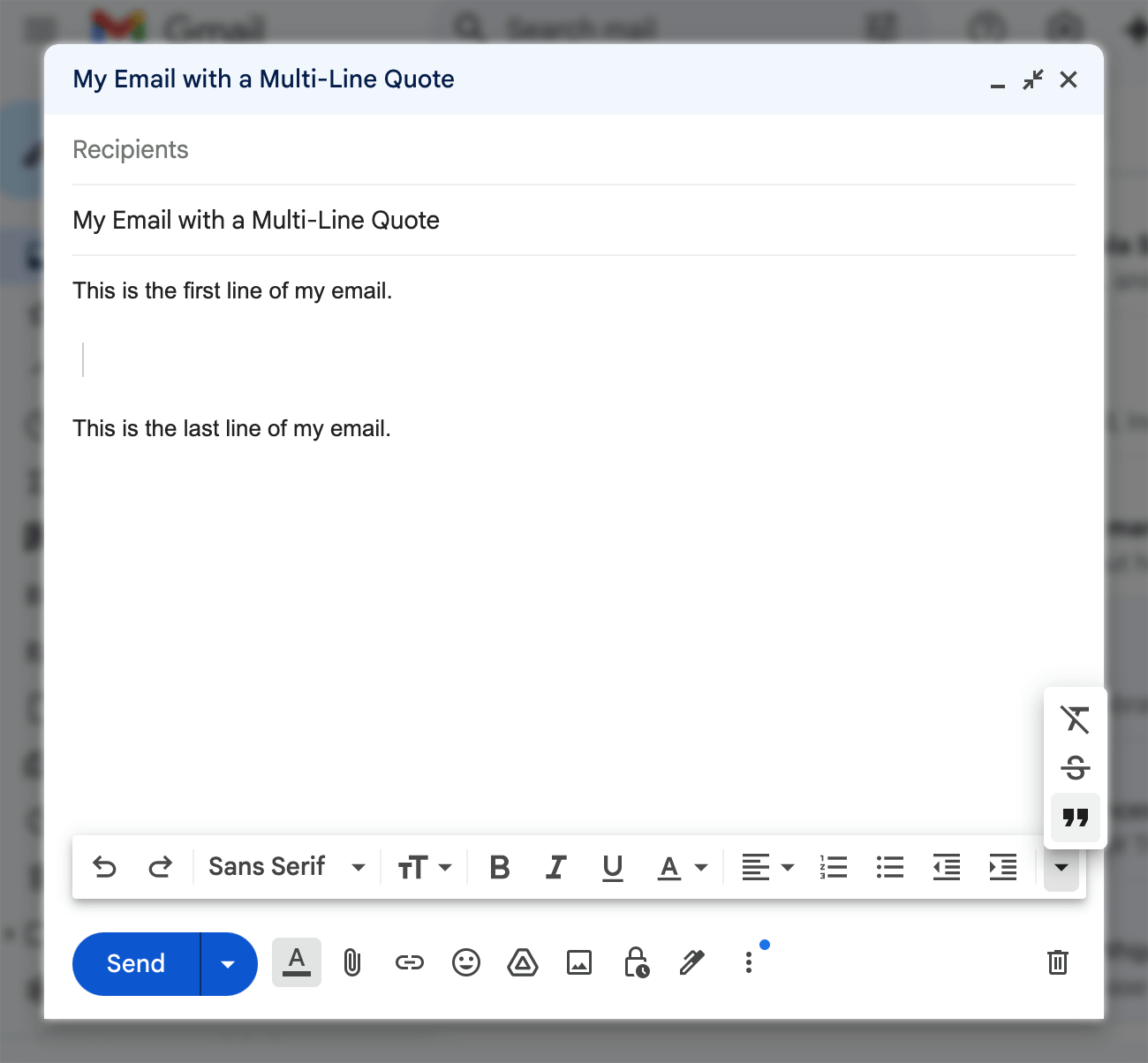
Finally, place your cursor after the quote indicator and paste the quote. Make sure, however, that you paste the quote as plain text via Command+Shift+V (on Mac) or Ctrl+Shift+V (on Windows). This removes any text formatting from the quote that might interfere with Gmail’s styling.
The result is a nice-looking quote with its line breaks intact:

The only real downside to this approach is that, depending on your quote’s length, you might need to type and format it in another text editor and then copy it from that tool to paste it into Gmail.
(Note: If you use a WYSIWYG editor like Google Docs to prepare your quote, then it’s even more important to paste it as plain text, since WYSIWYG editors often insert hidden formatting junk. Thus, I’d actually recommend using something simpler, like TextEdit on Mac or Notepad on Windows.)
Once your multi-line quote has been pasted into Gmail, then you can re-add any formatting (e.g., bold, italics) and links that might be missing.

This is one of those things that you probably never think about until you encounter it. After all, how often do you insert multi-line quotes into your emails? But when you do want to do that, it quickly becomes annoying because Gmail simply doesn’t work the way you expect it to.
I’m not holding my breath that Google will fix this anytime soon. Given that it’s been this way for years, it’s probably pretty low on their list of Gmail priorities. In the meantime, this workaround has saved me from undue frustration on several occasions. I hope you find it useful, too.