Three Simple Steps for Improving Web Font Performance

I recently came across an article filled with tips for improving your website’s performance. Which is a good thing; the more people know about web performance, the better. It had the usual recommendations — e.g., serve static content, optimize your images — but also recommended using system fonts in lieu of web fonts. To be fair, the author didn’t say web fonts were bad, just that system fonts were the better option. Which gave me a slight pause.
Technically speaking, the author’s correct; if all you care about is performance, then system fonts are absolutely the way to go. With system fonts, the browser doesn’t need to download anything to render the website’s text correctly. Instead, it simply uses fonts already installed on the user’s computer, meaning none of those layout shifts that can occur when the browser re-renders the page’s text after downloading the web fonts. What’s more, modern system font stacks are pretty impressive in their diversity and utility.
But I chafe a little at any implication that if we really care about web performance, then we’ll forgo web fonts altogether. I remember when web fonts became a reality, unlocking a new level of creativity and design, and I don’t really want to return to the time before that. Simply because web fonts can and have been abused is not an argument for ditching their use altogether, but rather, should be seen as a challenge to use them responsibly.
In other words, we can achieve a balance between web performance and web style.
Google Fonts Makes It Easy… Too Easy…
The easiest way to use web fonts is to go to a service like Google Fonts or Bunny Fonts, find the font(s) you want to use, and copy and paste the provided code. For example, if I want to use Lato, I can add the following HTML to my website’s <head> to use Google’s hosted version:
<link rel="preconnect" href="https://fonts.googleapis.com">
<link rel="preconnect" href="https://fonts.gstatic.com" crossorigin>
<link href="https://fonts.googleapis.com/css2?family=Lato:ital,wght@0,100;0,300;0,400;0,700;0,900;1,100;1,300;1,400;1,700;1,900&display=swap" rel="stylesheet">
That code tells Google that I want to use Lato at various font weights (e.g., 100, 300, 400) in both normal and italics. Then, in my stylesheet, I add font-family: "Lato", sans-serif; to the body selector, and voila! All of my website’s text will now render in Lato.
Convenience aside, this approach has some performance-related downsides. First, there’s a performance hit that occurs when the browser connects to Google’s servers, requests the necessary font files, and downloads them. Second, there can be a flash of unstyled text (FOUT), during which the text first appears in the fallback sans-serif font (which will be a system font like Helvetica or Arial) and then shifts after the Lato files finish downloading and are applied.
These hits may only cost a few fractions of a second, but the result can still be jarring, especially on pages with complicated layouts and multiple web fonts and/or if the user has a particularly slow internet connection. Fortunately, we can improve the situation.
Optimize in 1… 2… 3…
I often use Google-hosted fonts when I’m first designing a website and experimenting with its layout. But when it’s time to move the website to production and launch it, these three relatively simple steps will ensure that your web fonts are as performant as possible:
- Host web font files locally
- Inline all relevant CSS
- Prioritize downloading web fonts with browser “hints”
First and foremost, host your web fonts locally on your server. This may seem silly, as your hosting provider probably doesn’t have Google-level facilities. Local hosting, however, removes the need for extra HTTP requests, and the fewer requests your website makes, the faster it’ll load. (As the old adage goes, the fastest network request is the one that isn’t made.)
I recommend using Mario Ranftl’s Google Webfonts Helper to download copies of your web fonts. Search for your font(s), select your desired weights and styles, implement the pre-generated CSS, and upload the provided font files to your server. (For best results, make sure the “Modern Browsers” option is selected, which will only return optimized WOFF2 versions of the fonts.)
For our purposes, let’s keep things simple and just use regular and bold weights. That returns the following CSS from Google Webfonts Helper (which I’ve cleaned up a bit):
@font-face {
	font-display: swap;
	font-family: 'Lato';
	font-style: normal;
	font-weight: 400;
	src: url('/path/to/lato-v24-latin-regular.woff2') format('woff2');
}

@font-face {
	font-display: swap;
	font-family: 'Lato';
	font-style: italic;
	font-weight: 400;
	src: url('/path/to/lato-v24-latin-italic.woff2') format('woff2');
}

@font-face {
	font-display: swap;
	font-family: 'Lato';
	font-style: normal;
	font-weight: 700;
	src: url('/path/to/lato-v24-latin-700.woff2') format('woff2');
}

@font-face {
	font-display: swap;
	font-family: 'Lato';
	font-style: italic;
	font-weight: 700;
	src: url('/path/to/lato-v24-latin-700italic.woff2') format('woff2');
}
Now, instead of putting that CSS in an external stylesheet, inline it directly into the <head> using <style> tags. This ensures that any font-related CSS is immediately available; the browser doesn’t have to wait for the external stylesheet to download, as well, to get those styles.
Finally, tell the browser to prioritize downloading the web fonts. Modern browsers like Chrome and Firefox are pretty smart when determining what to download and when. But we can give them special “hints” that certain resources, like web fonts, should be prioritized over other resources. This ensures that they’re downloaded first (or as soon as possible). And the sooner they’re downloaded, the sooner they can be put to use.
Based on the above CSS, I know I’m using four Lato files. And since these fonts will be used on every page of my website, it’d be nice to make sure they load as quickly as possible. I want to “preload” them before anything else, which can be done with this code:
<link rel="preload" as="font" type="font/woff2" href="https://domain.com/path/to/lato-v24-latin-regular.woff2" crossorigin>
<link rel="preload" as="font" type="font/woff2" href="https://domain.com/path/to/lato-v24-latin-italic.woff2" crossorigin>
<link rel="preload" as="font" type="font/woff2" href="https://domain.com/path/to/lato-v24-latin-700.woff2" crossorigin>
<link rel="preload" as="font" type="font/woff2" href="https://domain.com/path/to/lato-v24-latin-700italic.woff2" crossorigin>
The browser will now fetch and download those files — which are specifically designated as “font” files — as quickly and early as possible. From MDN:
[Preloading] lets you declare fetch requests in the HTML’s
<head>, specifying resources that your page will need very soon, which you want to start loading early in the page lifecycle, before browsers’ main rendering machinery kicks in. This ensures they are available earlier and are less likely to block the page’s render, improving performance.
At first blush, it seems logical to preload as much as possible, but that’ll just gum up the works. Put simply, if everything’s preloaded, then nothing’s preloaded. Instead of preloading lots of resources, it’s best to focus on a few key render-blocking resources (i.e., resources that slow down your website’s rendering) and preload only those. Identifying any such resources may take some experimentation, and in the end, you may find it’s better to preload fewer items than you originally thought.
For example, in the above code, I might decide to just preload the non-italic versions of Lato, since I know I won’t do a lot of italicizing.
<link rel="preload" as="font" type="font/woff2" href="https://domain.com/path/to/lato-v24-latin-regular.woff2" crossorigin>
<link rel="preload" as="font" type="font/woff2" href="https://domain.com/path/to/lato-v24-latin-700.woff2" crossorigin>
Let’s see what this preloading looks like in the real world. I’ve created a very simple webpage that uses Lato and consists of several paragraphs interspersed with images. If I load this page and look at the dev tools, the Lato files are among the very last items downloaded by the browser.
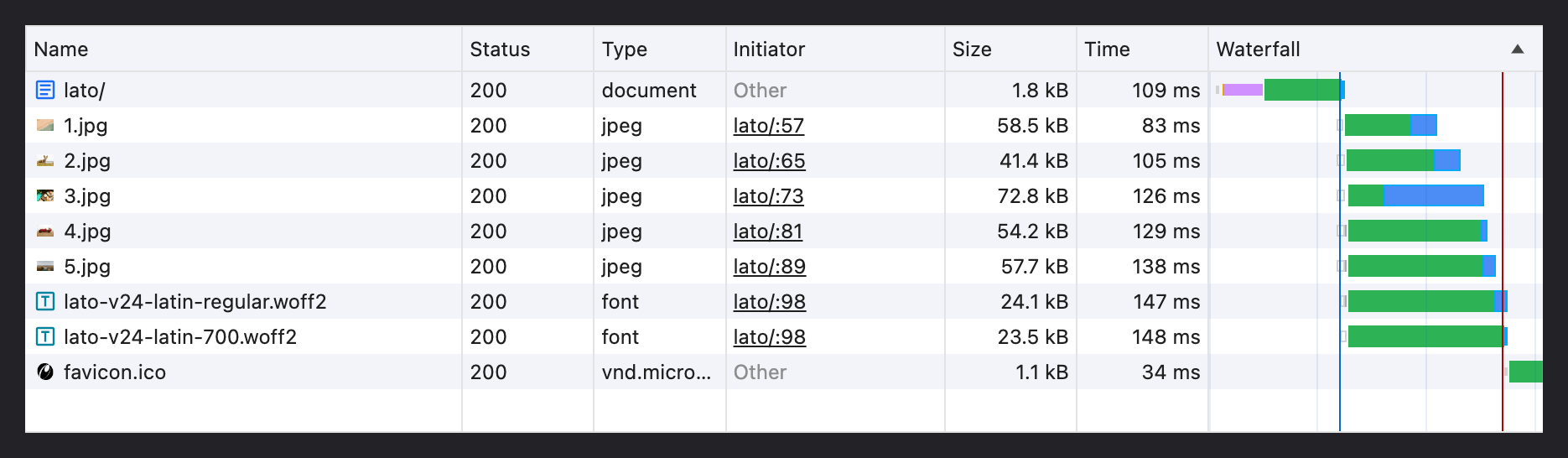
After I add the “preload” hints, however, the browser does some reprioritization.

The Lato font files are now prioritized above the images, meaning they’ll be downloaded much sooner than before, thus improving the likelihood of them being loaded more quickly and minimizing any FOUT or layout shifts. (Matej Latin delves a bit more into this with a real-world example.)
The above just scratches the surface of optimizing web font performance. For example, you can also subset your web fonts (i.e., strip out unused characters to reduce the size of your font files) or implement caching policies to reduce how often users have to download your web font files. Some optimization techniques can get into the weeds, though. (Subsetting may require installing command line tools, and not everyone’s comfortable working in a terminal.)
But so long as you have access to your website’s hosting account and can use FTP, the above are some of the quickest and simplest steps to help ensure that your web fonts don’t represent a significant performance bottleneck. For what it’s worth, I’ve been using this approach on Opus for awhile now, and I’ve been very pleased with the results in terms of speed and performance.
If you ultimately decide to forgo web fonts altogether and just use system fonts, as the aforementioned article suggests, that’s certainly your prerogative. But don’t be afraid to use web fonts simply because you care about web performance; they’re not as mutually exclusive as you might think.